What is the Convocation feature and how to use it.
- Convocation is an event creation feature for subjects such as meetings and trainings.
- Planners and Administrators of the group can create these obligatory events where selected members are invited and their attendance is mandatory.
- Once created, these events automatically are programmed into the members calendar. No event approval is required from the member.
**Note: Only the person creating the Convocation event and the members invited will see the title and details of the event in the calendars. All other members of the group will simply see "Event" when looking at that member in the group calendar
Steps to create a Convocation event:
- Access the Calendar Tab
- My Calendar
- Convocation button
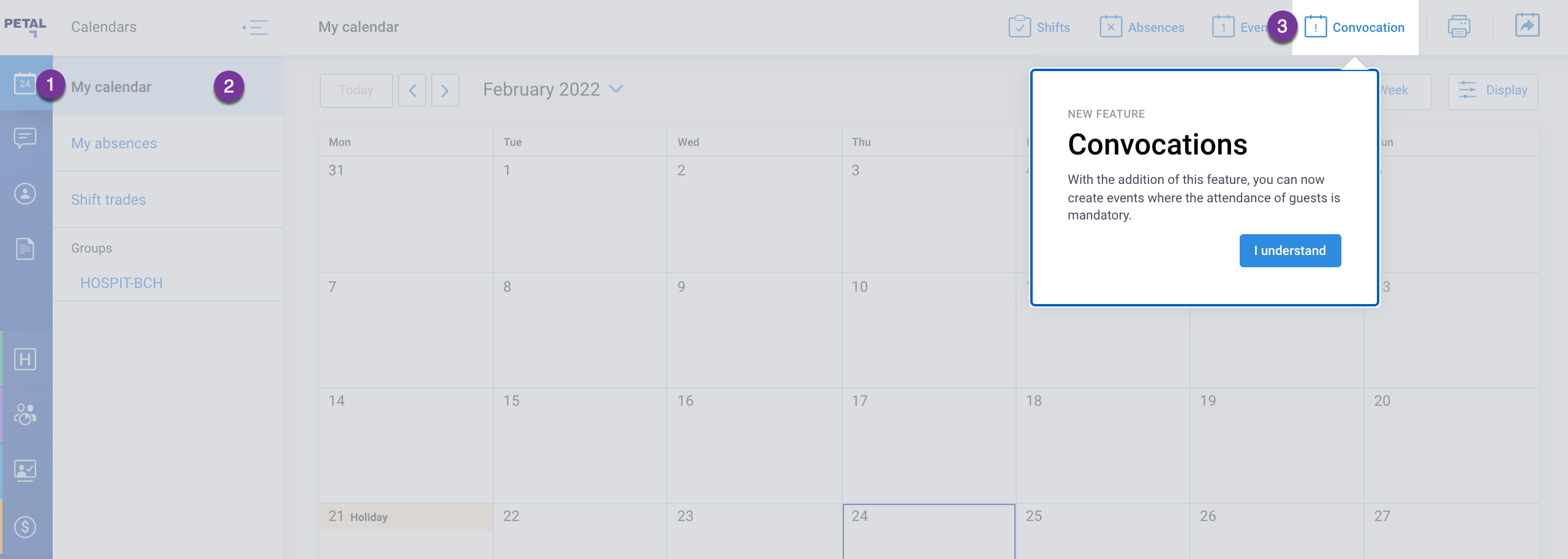
Filling out the Convocation event:
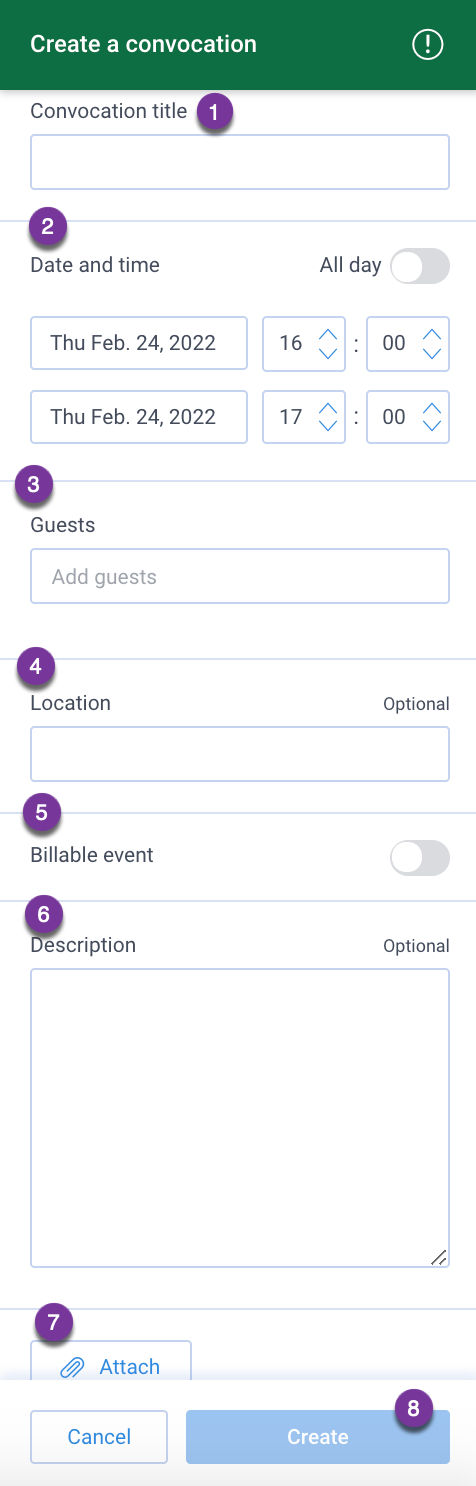
- Enter a title for the event
- Select a date and time. You may select the All day toggle if necessary
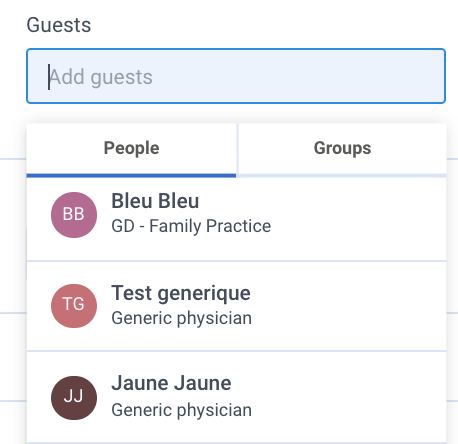
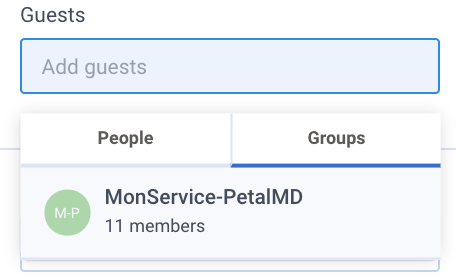
- Select your Guests.
- You may search by entering the Member's name
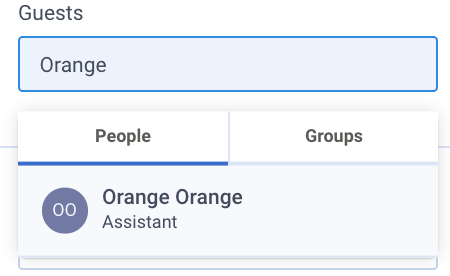
- You may navigate in the People option
- You may navigate in the Groups option and select the appropriate group. This will invite all members within that group.
4. Add Location of the event (optional)
5. Use the Billable event toggle if necessary
6. Add a Description to the event (optional)
7. Add Attachment to the event is necessary
8. Click Create
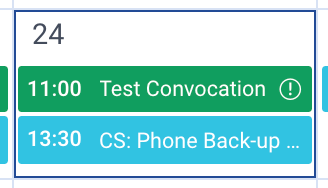
Once created, the Convocation will then show in the member's personal calendar in green with an exclamation point symbol (Note this one is named Test Convocation):
If the event creator wishes to Edit or Delete the Convocation, click the green Convocation event in Personal Calendar and the following section will open:
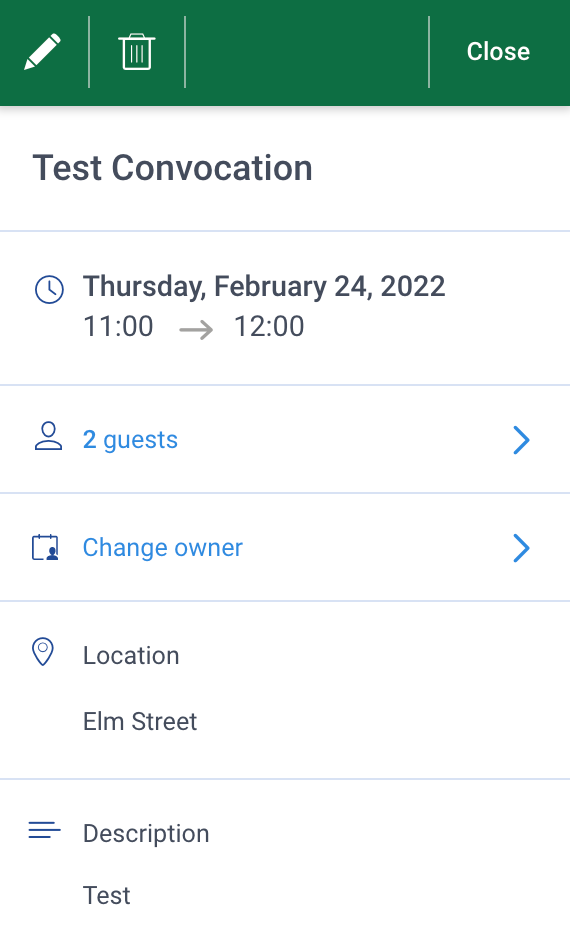
Click the Pencil to Edit 
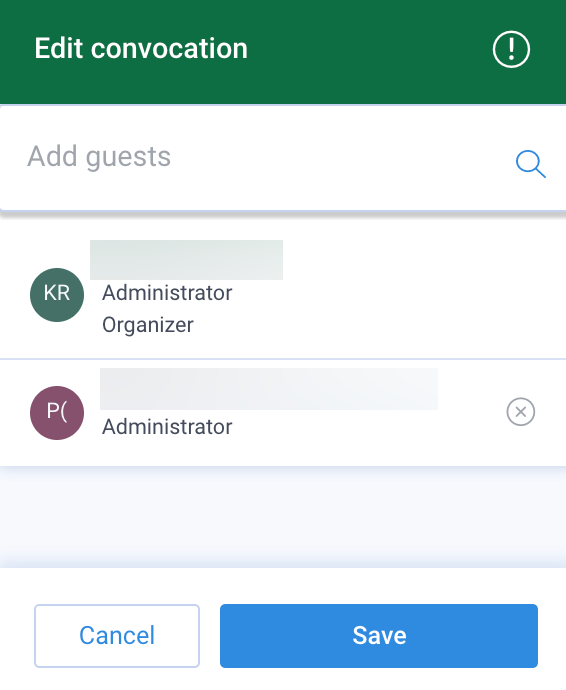
Add/remove Guests:
- Click the blue arrow beside guests and simply remove the member by clicking the X beside their name or add a new member by typing their name in the Add Guests search field.
- Once done click Save.
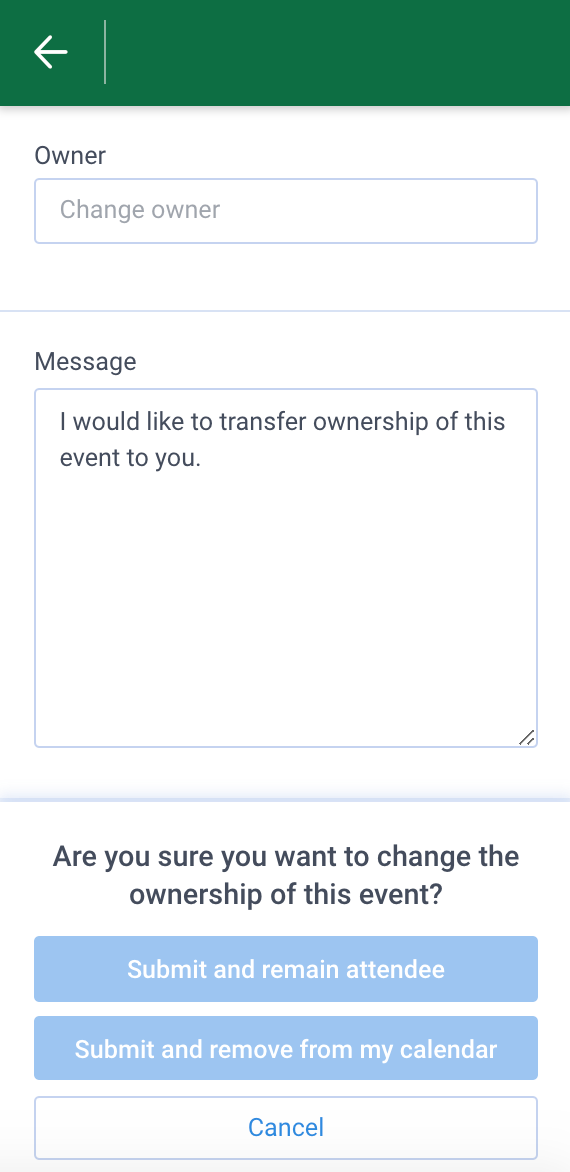
Change the event Owner.
- Type the new owners name in the Owner search field or scroll through the list of members and select.
- Add personalized Message
- Select the option to Submit and remain Attendee or Submit and remove from my calendar
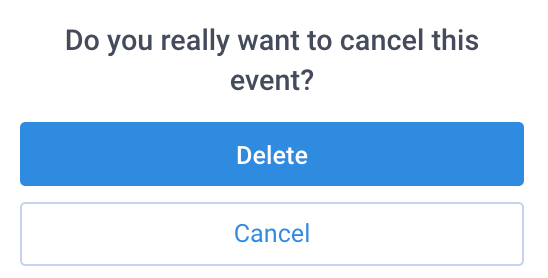
Click the Garbage Icon to delete the event