Steps to create multiple blocks for a task within a period.
Clients may request that a particular task be configured as a multiple block (vs individual days), so that only one resource can be assigned to the entire block. It looks like this:
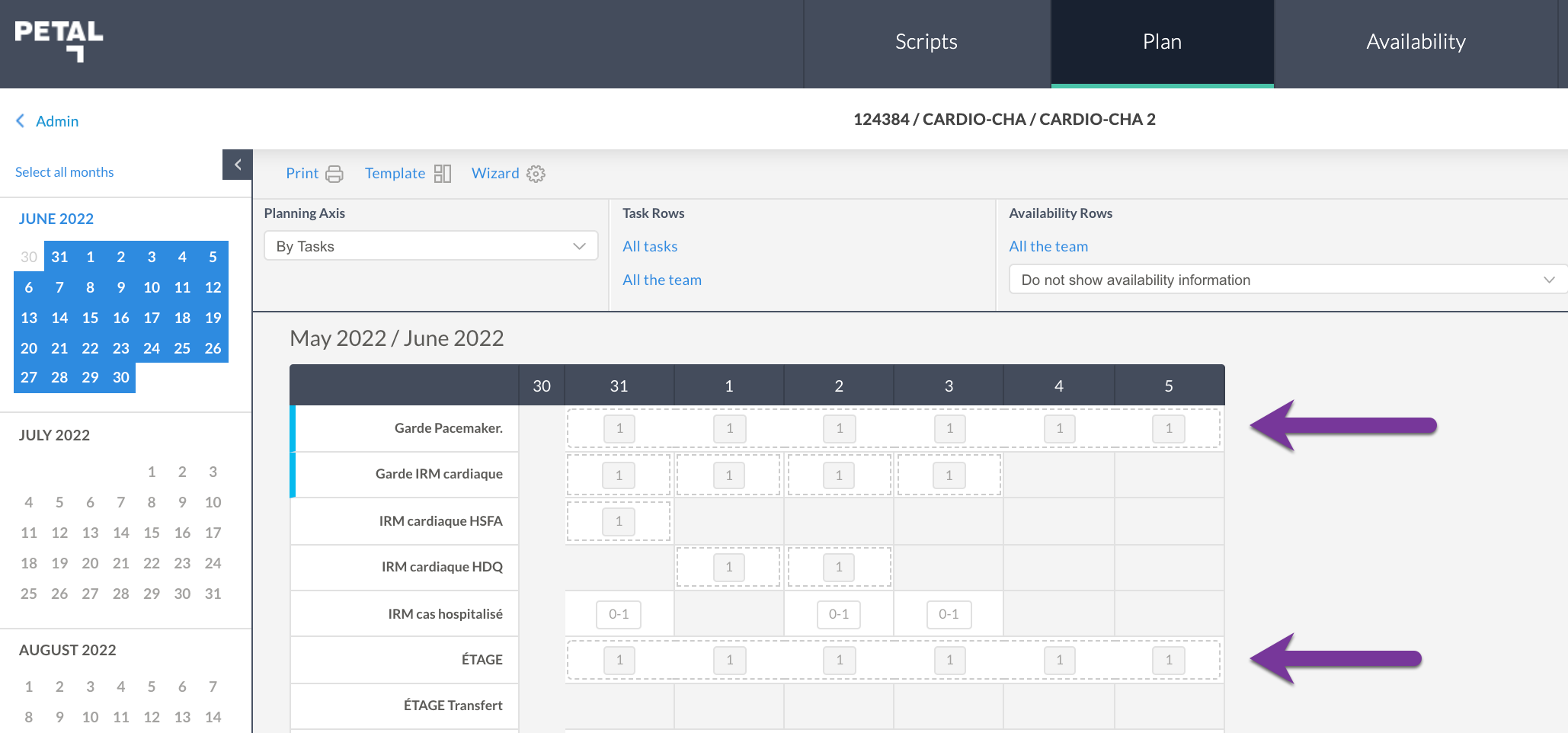
A block can be anywhere from 2 to 7 days depending on the configuration.
Steps:
1) Create your Block:
Go to the configuration area of your period and under the Structure section click Blocks. Note the period will need to be degenerated for you to make modifications to this section. Ensure to get permission from the Planner before degenerating the period.
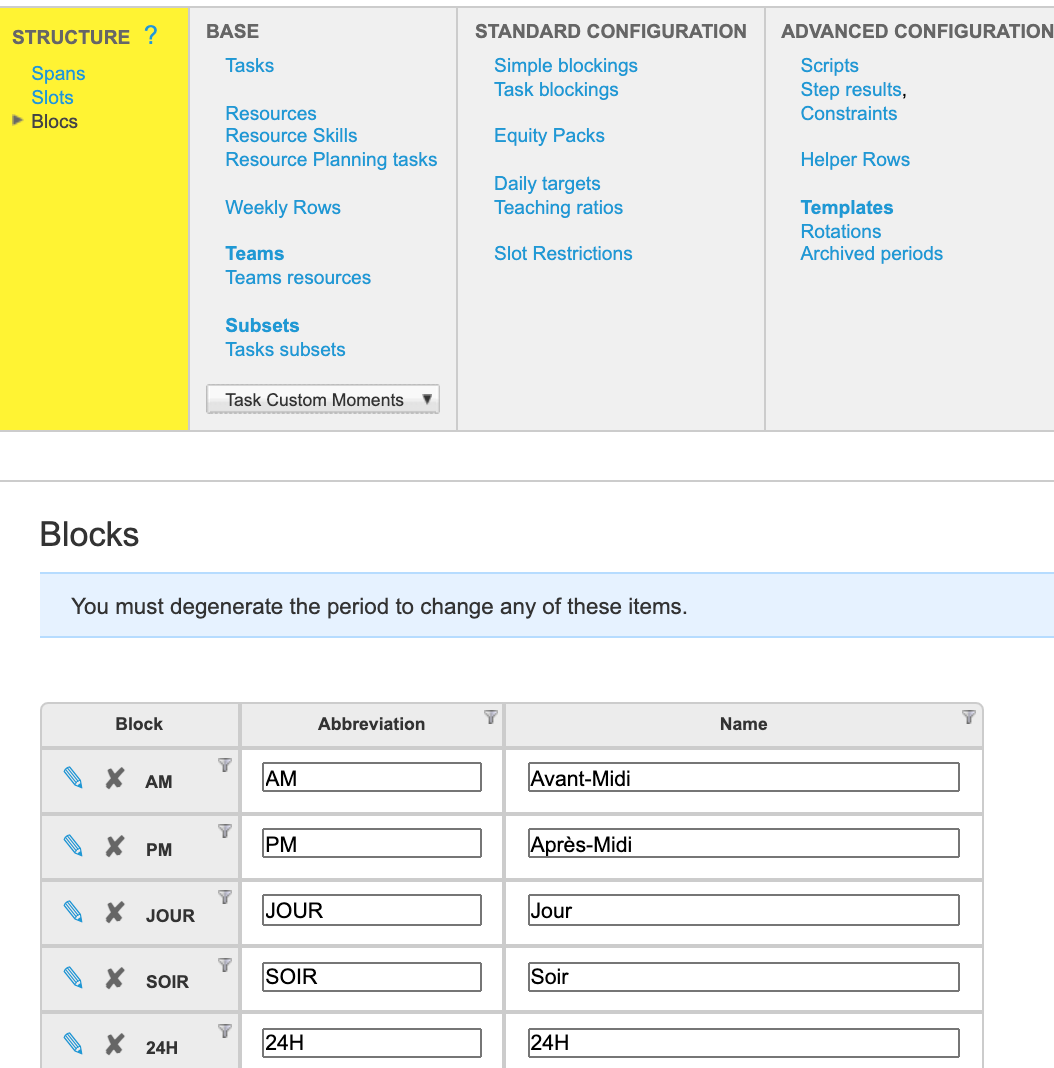
Once period is degenerated...

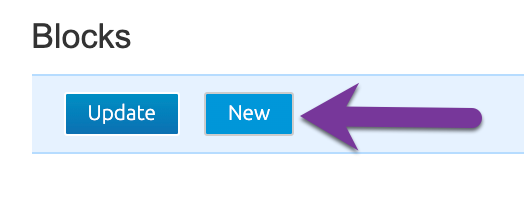
Create your Block. In this example, we will create a block of 7 days:
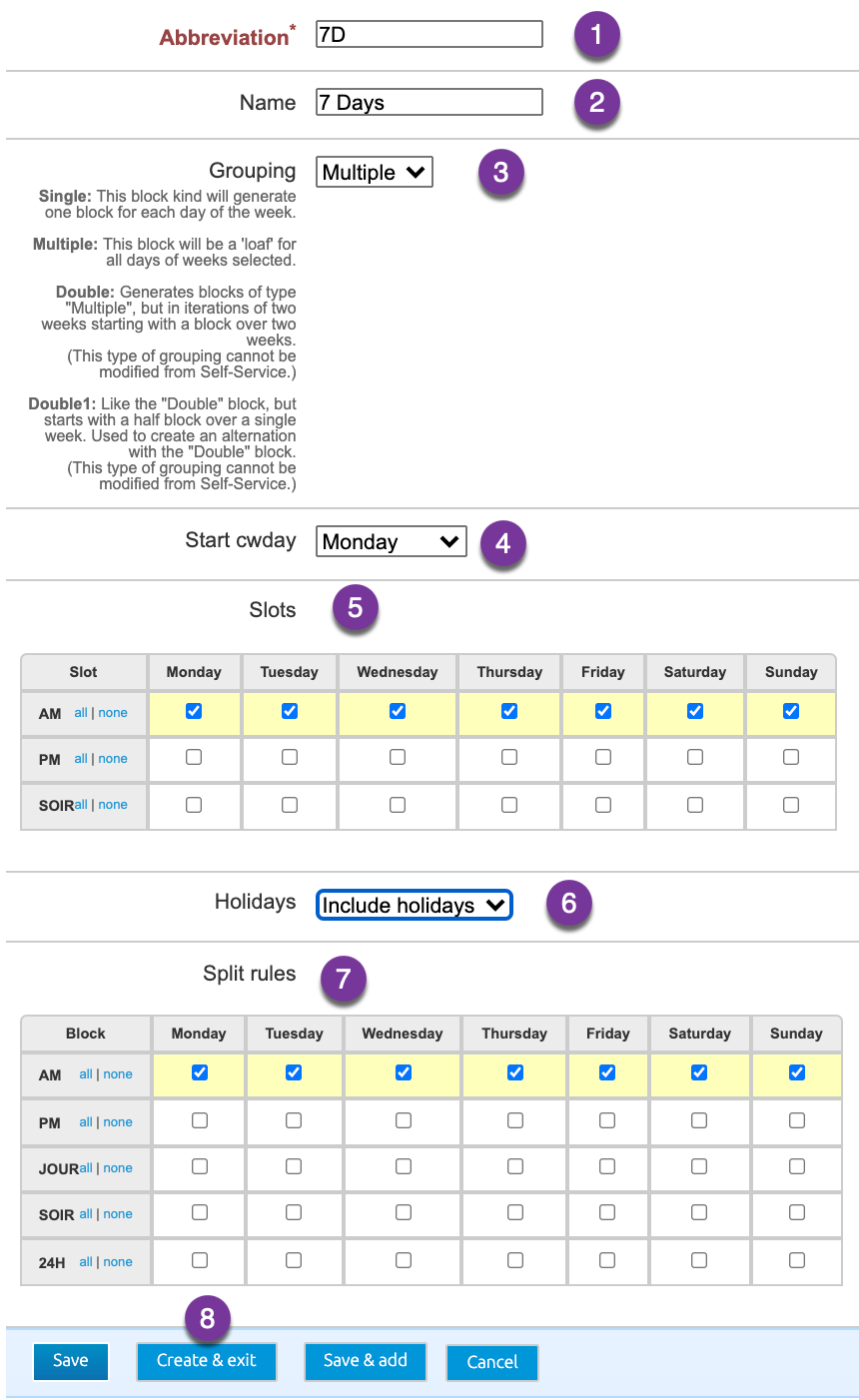
Enter in all the appropriate information:
- Abbreviation
- Name
- Select the Multiple option via Grouping dropdown menu
- Start cwday: Which day you want your week to begin
- Select your 7 days Slots
- Configure your Holidays: Include, Exclude or Only Holidays
- Select your 7 days Split Rules
- Save and Exit
2) Create your Task:
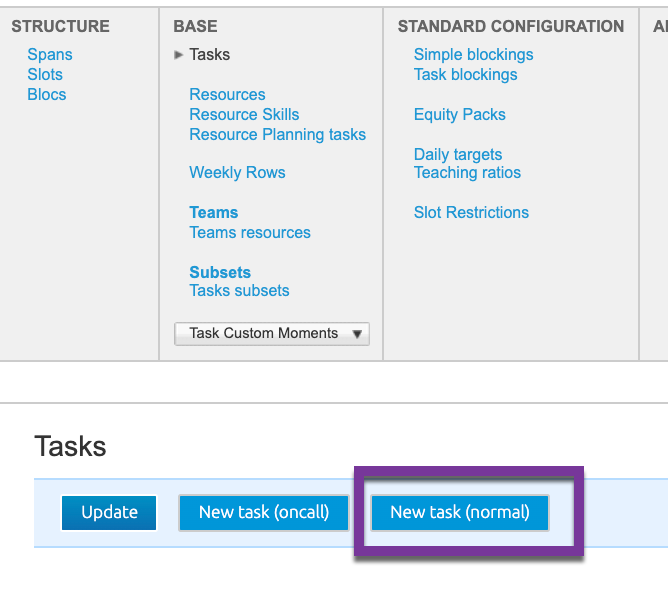
To create your task, go to the Tasks section and click New Task.
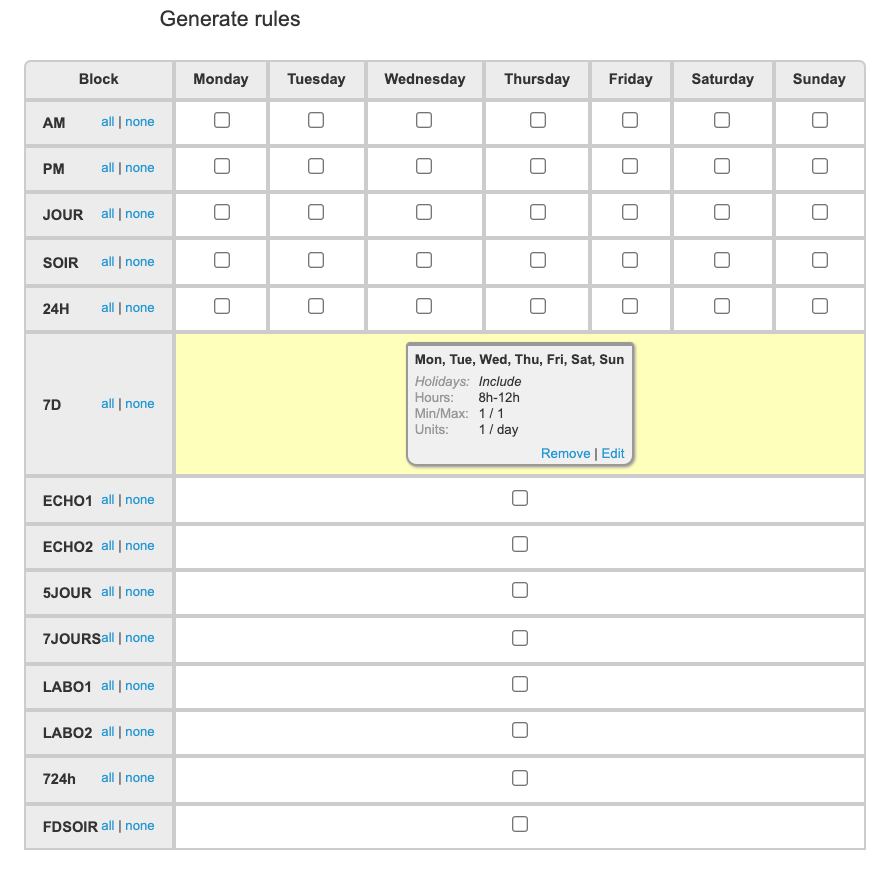
Create the task as you normally would but be sure to select the block you just created via the Generate Rules section. In this Example it's the 7D:
3) Once your task is saved, you can regenerate the period.